tect skill
amazon web services, aws account creation, aws account setup, aws cloud practitioner, aws for beginners, aws free tier, aws getting started, aws registration, aws signup, aws tutorial, cloud computing, create aws account, how to open aws account, step by step aws account
skillorbit
0 Comments
How to open an AWS account

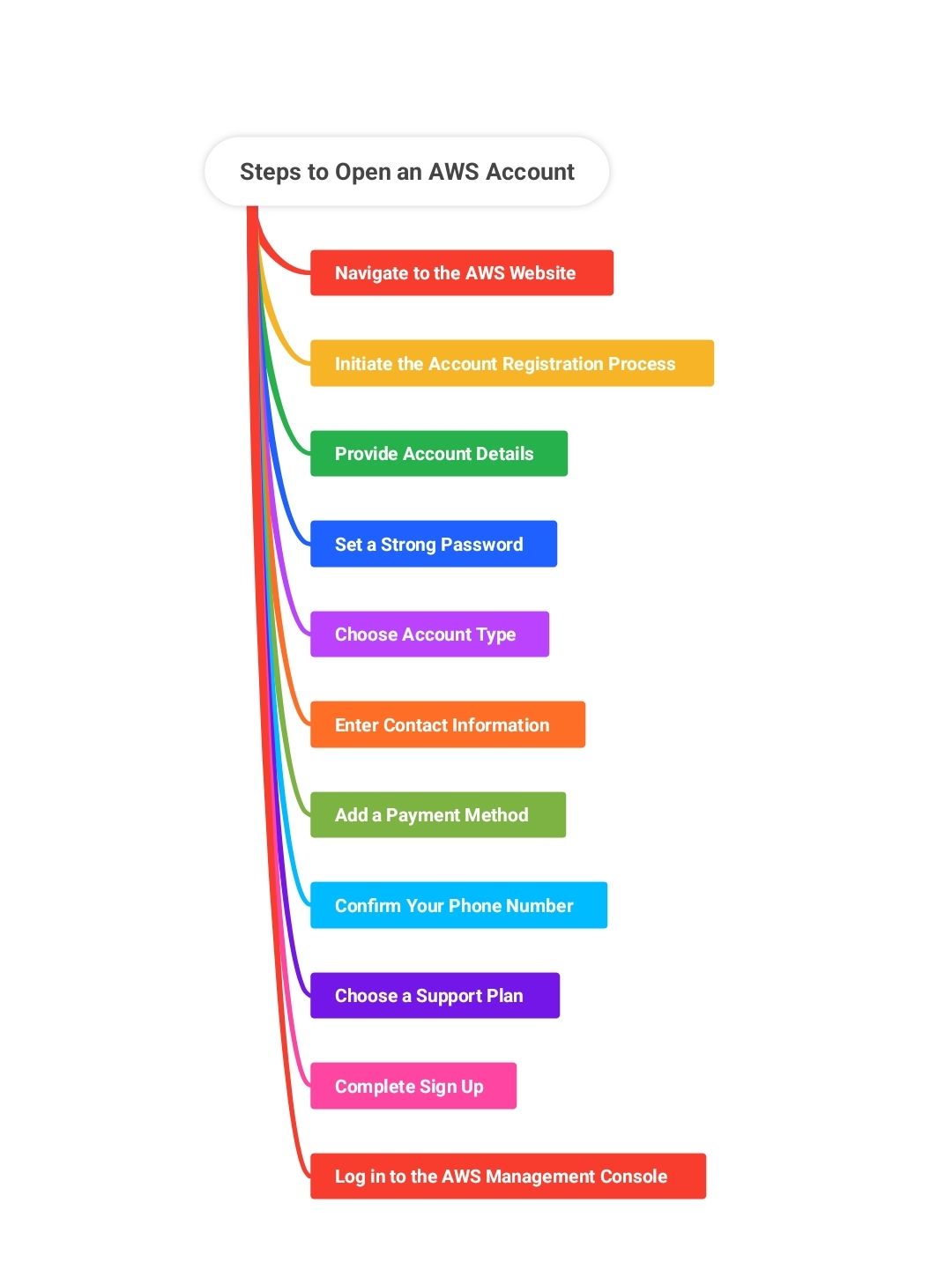
Steps to Open an AWS Account
1. Navigate to the AWS Website
Open the official AWS website (aws.amazon.com).
2. Initiate the Account Registration Process
Click Create an AWS account.
If you don’t find this, you might have to select Sign in to the Console first, then Sign in to a different account, and lastly Create a new AWS account.
3. Provide Account Details
Enter your email address (this will be the root user email).
Set an account name.
Click Verify email address. AWS will send a verification code to your email; type in the code to continue.

4. Set a Strong Password
Make and verify a password for the root user. AWS demands a strong passwor consists of a combination of uppercase letters, lowercase letters, numbers, and special characters.
5. Choose Account Type
Choose Personal or Business. Both options are identical, but enter business information if the account is for a company.
6. Enter Contact Information
Enter your personal or business information, including a legitimate phone number for verification. Agree to the AWS Customer Agreement to proceed.
7. Add a Payment Method
Enter your debit or credit card information to verify billing. AWS can temporarily hold (typically $1) your card to verify, but you will not be charged for Free Tier usage.
8. Confirm Your Phone Number
Select a contact method (phone call or SMS) and enter your phone number.
Enter the code sent to your phone.
9. Choose a Support Plan
Choose from the available AWS Support plans. The Basic plan is free and sufficient for most new users.
10. Complete Sign Up
After confirming your support plan, AWS will process your account activation. This may take a few minutes up to 24 hours. You’ll receive a confirmation email when your account is active.
11. Log in to the AWS Management Console
Sign in to the AWS Console using your root email and password.
Further Security and Best Practices
Enable Multi-Factor Authentication (MFA): To add extra security, enable MFA for your root account.
Set Up Billing Alerts: To prevent surprise charges, set up billing alerts and budgets.
Create IAM Users: Refrain from using the root account for normal tasks. Create IAM users with proper permissions for everyday use.
Review Free Tier Limits: Keep an eye on usage to remain in Free Tier limits and prevent charges.
Quick Reference Table
Step\tAction Required
Go to AWS website\taws.amazon.com
Create account\tClick “Create an AWS account”
Email verification\tEnter email, confirm with code
Set password\tCreate a secure password
Account type\tSelect Personal or Business
Contact info\tEnter information, agree to terms
Payment method\tAdd credit/debit card
Phone verification\tEnter and confirm phone number
Support plan\tSelect Basic or other plan
Activation\tWait for confirmation email
First login\tLog in to AWS Console
By doing this, you are able to properly open and secure your AWS account, ready to discover cloud services and the AWS Free Tier.


Post Comment